
IntelliJ Plugin Settings
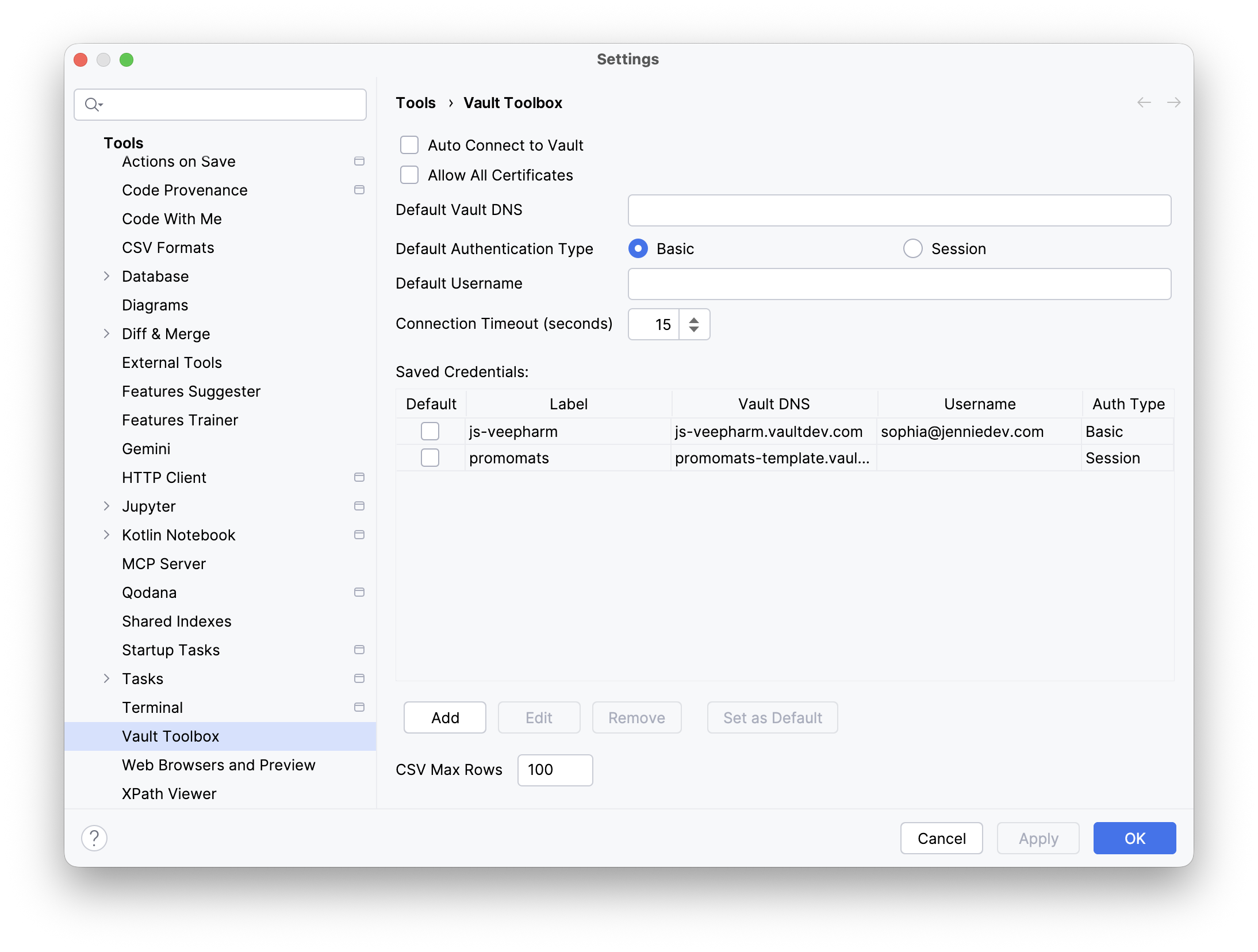
IntelliJ IDEA allows you to configure the Vault Toolbox plugin for your unique needs. To view or edit plugin settings, navigate to Settings > Tools > Vault Toolbox. After configuring settings, click Apply to save them.
Connecting to Vault
Section link for Connecting to VaultSelect the option Auto Connect to Vault to enable Vault Toolbox to automatically connect to Vault when you open the project. This skips the typical authentication process.
There may be times where a user is unable to authenticate to Vault using Vault Toolbox, such as during a Vault upgrade. Set a value for the Connection Timeout to define how long Vault Toolbox should attempt to connect to the server. If Vault Toolbox does not successfully establish a connection within this specified duration, it aborts the login attempt and returns a timeout error. By default, the connection timeout is 15 seconds.
Allowing All Certificates
Section link for Allowing All CertificatesVault Toolbox uses the open-source Vault API Library (VAPIL) and requires public HTTPS certificates as a default. To use Vault Toolbox with a personal virtual machine (PVM), you must enable Allow All Certificates.
Setting Default Values
Section link for Setting Default ValuesYou can save time by setting default values for authentication parameters and have them be used for further projects that you create. The following default settings are available:
- Default Vault DNS: The default Vault DNS to use for new projects.
- Default Authentication Type: The default authentication method: Basic or Session.
- Default Username: The default username to use for new projects.
Managing Saved Credentials
Section link for Managing Saved CredentialsYou manage your saved login credentials for Vault Toolbox directly from the settings page.
Adding Saved Credentials
Section link for Adding Saved CredentialsTo create a new saved credential:
Editing Saved Credentials
Section link for Editing Saved CredentialsTo edit an existing saved credential:
Removing Saved Credentials
Section link for Removing Saved CredentialsTo remove an existing saved credential, select an existing credential, then click Remove.
Setting a Saved Credential as Default
Section link for Setting a Saved Credential as DefaultTo set an existing saved credential as the default login credentials, select an existing credential, then click Set as Default.
CSV Max Rows
Section link for CSV Max RowsProvide a value for CSV Max Rows to define the maximum number of rows for the File Viewer to display when analyzing developer logs. By default, the File Viewer displays the first 100 rows of a CSV file.