
Using the VQL Console
The Vault Toolbox plugin includes a VQL Console for running read-only Vault queries directly within IntelliJ IDEA. This guide outlines how to write and run queries in the console and build queries visually with the Query Builder. Learn more about sending VQL queries.
Running Queries
Section link for Running QueriesThe VQL Console features syntax highlighting, object and field auto-completion, paginated results, CSV export, and persistent query history.
To run a query:
- Within IntelliJ IDEA, open the Vault Toolbox plugin from the righthand sidebar.
- Select the VQL Console (
) tab. - Type a VQL statement in the editor or select an existing query from the History dropdown. As you type, object and field names auto-complete.
- Optional: Click
within the editor to format the query for readability. - Click
Run to execute the query. Alternatively, press Cmd+Enter(macOS) orCtrl+Enter(Windows/Linux). To run only a portion of the query, select the text, then clickRun. - Optional: While a query is running, click
Cancel to stop it.
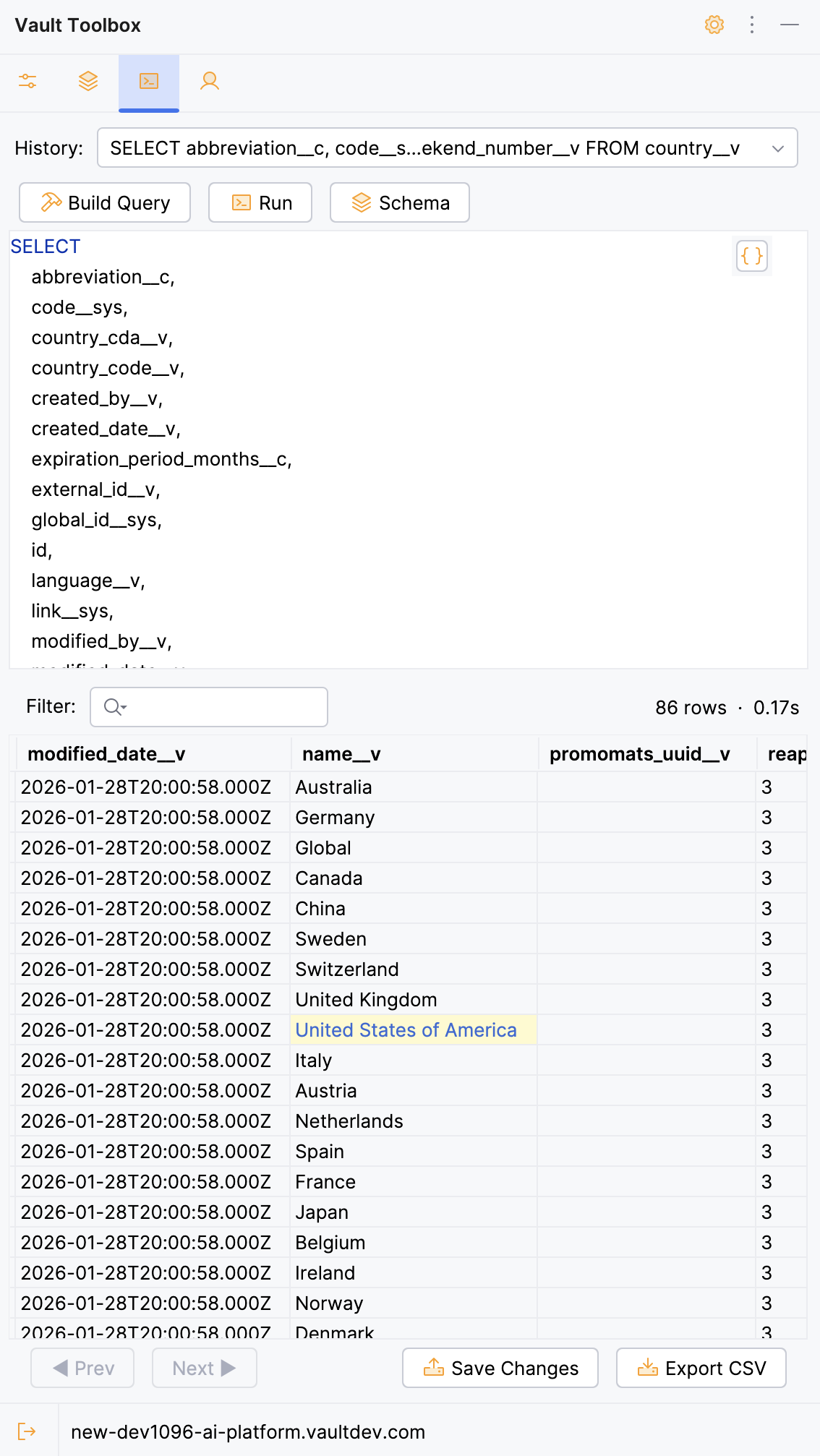
Results display in a grid below the editor. To page through results, click ◀ Prev or Next ▶ at the bottom of the results panel. The status bar shows the row count and elapsed time. Vault Toolbox retains the last 25 queries in the History dropdown across IDE sessions.
Editing Results
Section link for Editing ResultsDouble-click on a cell in the results grid to edit its value. Click
Exporting Results
Section link for Exporting ResultsTo export the current page of results to a CSV file in your project directory, click
Revealing Query Targets
Section link for Revealing Query TargetsTo reveal the object the query is targeting in the Schema Explorer, click FROM clause to reveal the object it names.
Building Queries Visually
Section link for Building Queries VisuallyThe Query Builder helps you construct a VQL statement without writing it by hand. Pick an object, choose which fields to select, add filter conditions, and optionally order the results — the dialog displays a live preview of the resulting VQL.
To build a query visually:
- From the VQL Console, click
Build Query. - In the dialog, select an object from the Object dropdown.
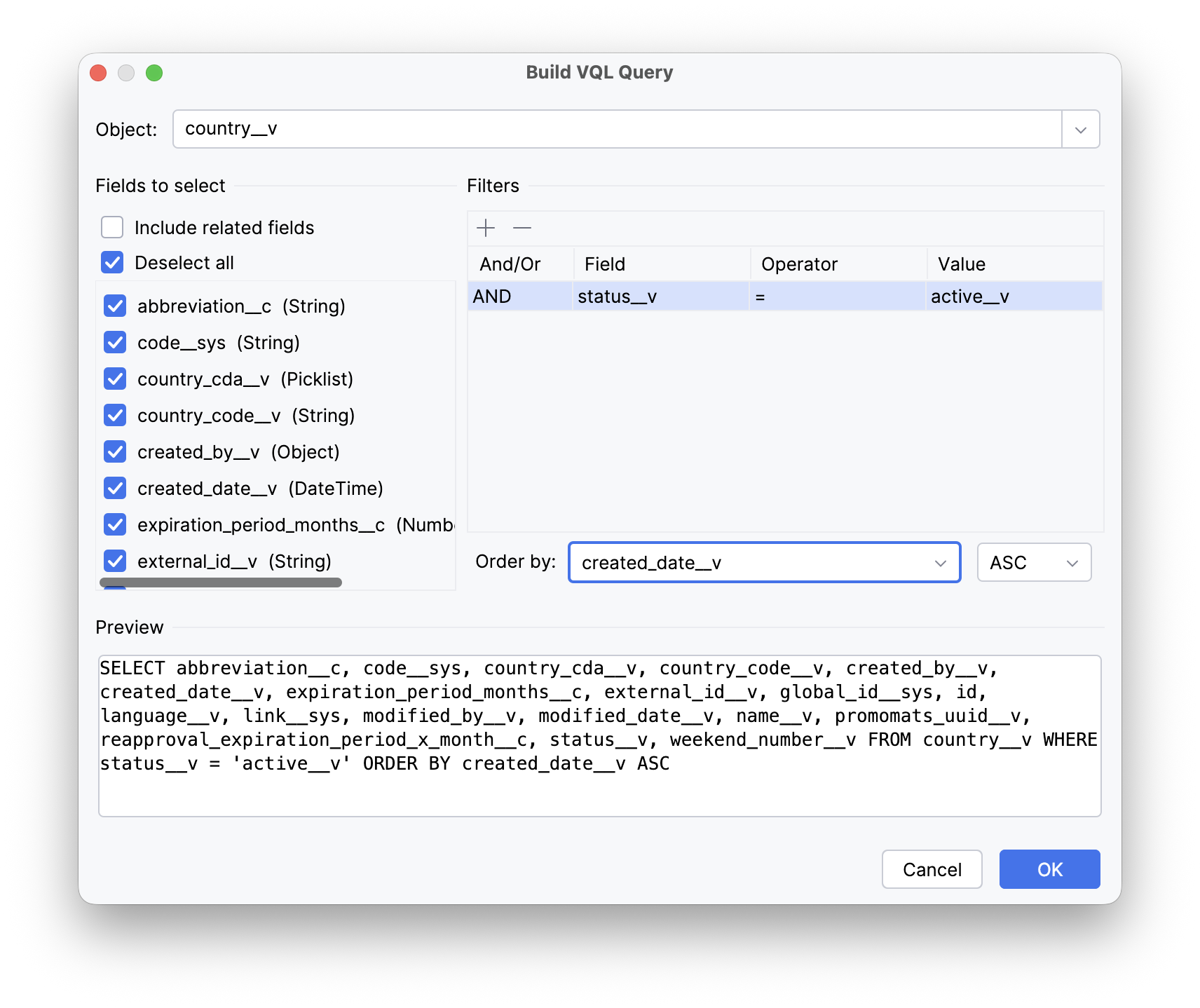
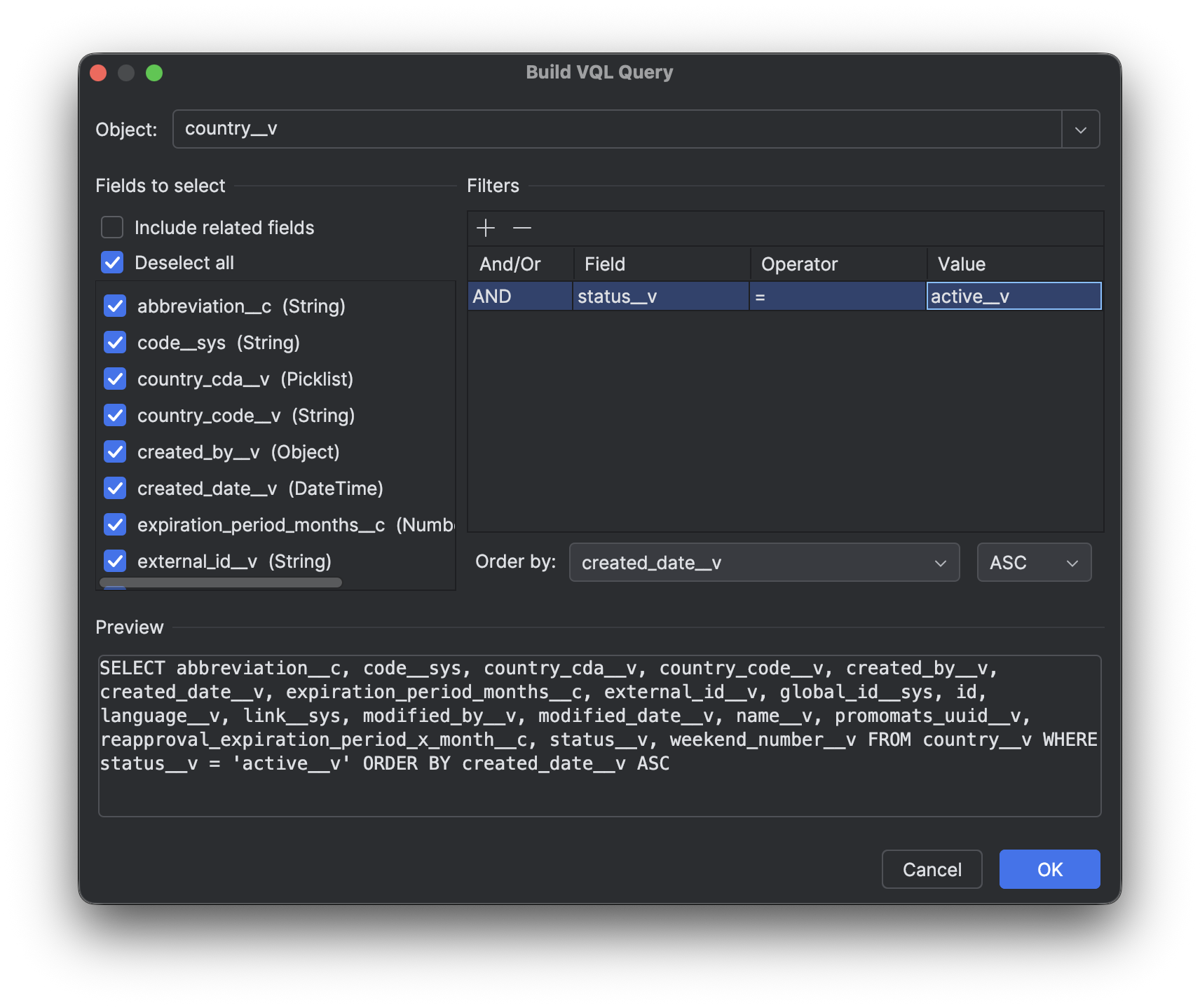
- In the Fields to select list, select the checkbox for each field to include. Select Select all to include every field, or Include related fields to surface fields available through relationships.
- Optional: Under Filters, click
to add a filter row. Select a Field, an Operator ( =,!=,<,>,<=,>=,LIKE,IN,IS NULL,IS NOT NULL), and provide a Value. Use the And/Or column to combine multiple conditions. - Optional: Under Order By, select a field and a direction:
ASCorDESC. - Review the live VQL preview at the bottom of the dialog, then click OK to insert the query into the console editor.
The generated query does not run automatically. Review and edit it in the console, then click