
Working with MDL
Vault Toolbox provides syntax highlighting for .mdl files and tools to extract, deploy, and drop MDL directly from Visual Studio Code. This guide outlines how to use each of these tools, and how to download a Vault Configuration Report.
MDL Syntax Highlighting
Section link for MDL Syntax HighlightingVault Toolbox recognizes .mdl files in your project repository, providing syntax highlighting for MDL keywords (such as CREATE, RECREATE, ALTER, RENAME, and DROP), component types, attribute names, strings, and comments. Visual Studio Code applies this highlighting automatically to any .mdl file.
Downloading Vault Configuration Reports
Section link for Downloading Vault Configuration ReportsYou can download a Vault Configuration Report using Vault Toolbox instead of doing so through the Vault UI. Vault Configuration Reports are Microsoft Excel reports that contain configuration information and reference data. This is especially useful for evaluating your Vault's configuration prior to modifying components. Learn more about generating Vault Configuration Reports
To download a Vault Configuration Report:
- Select the Vault Toolbox icon in the lefthand panel.
- Select the Actions (
) tab. - Expand Components (
) and select Download Vault Configuration Report ( ). - Optional: Configure the report parameters described in Configuration Report Options below.
- Optional: Click (
) Save as defaults to save your current parameters as the form's starting point for future reports, or ( ) Reset to defaults to discard back to Vault's own defaults. 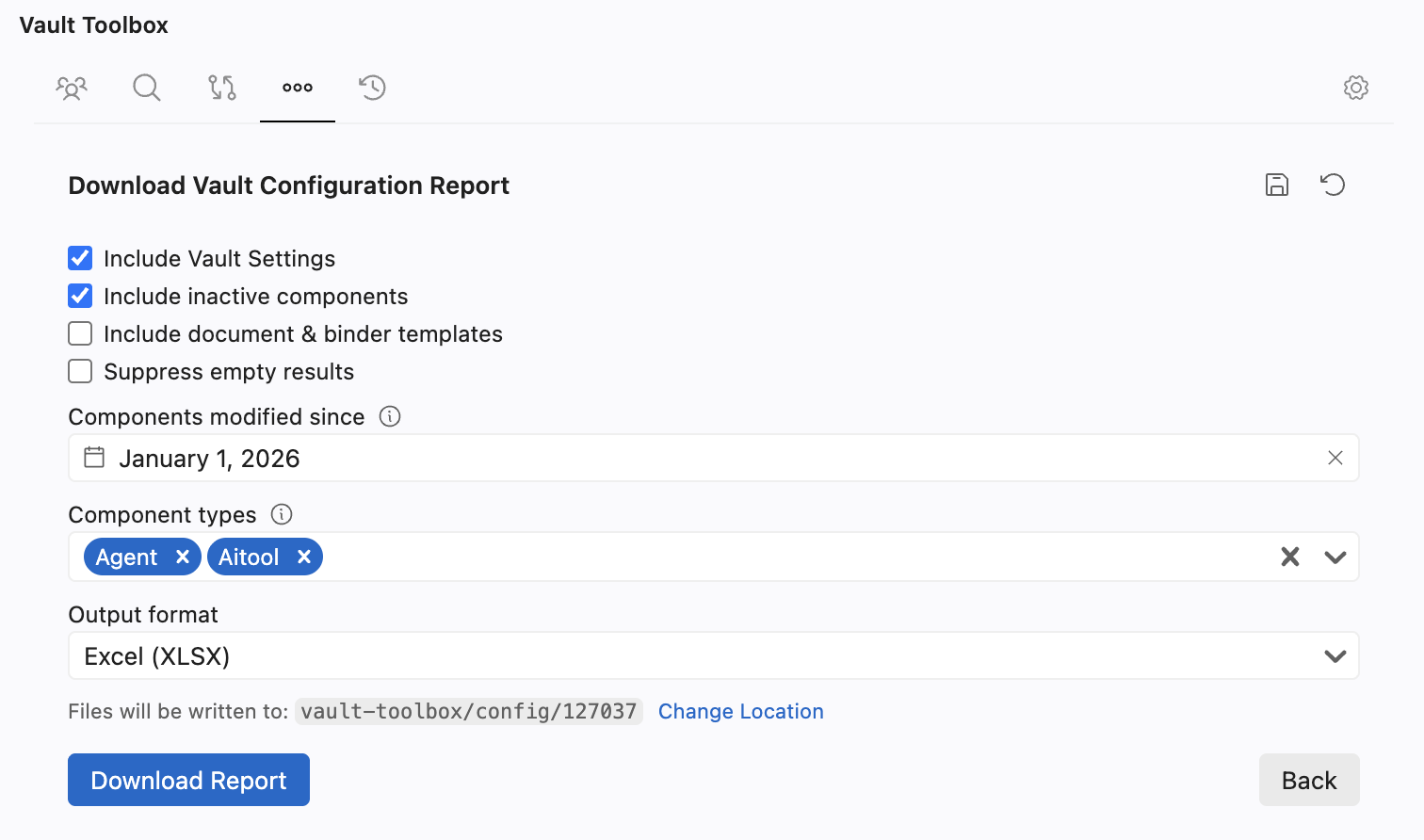
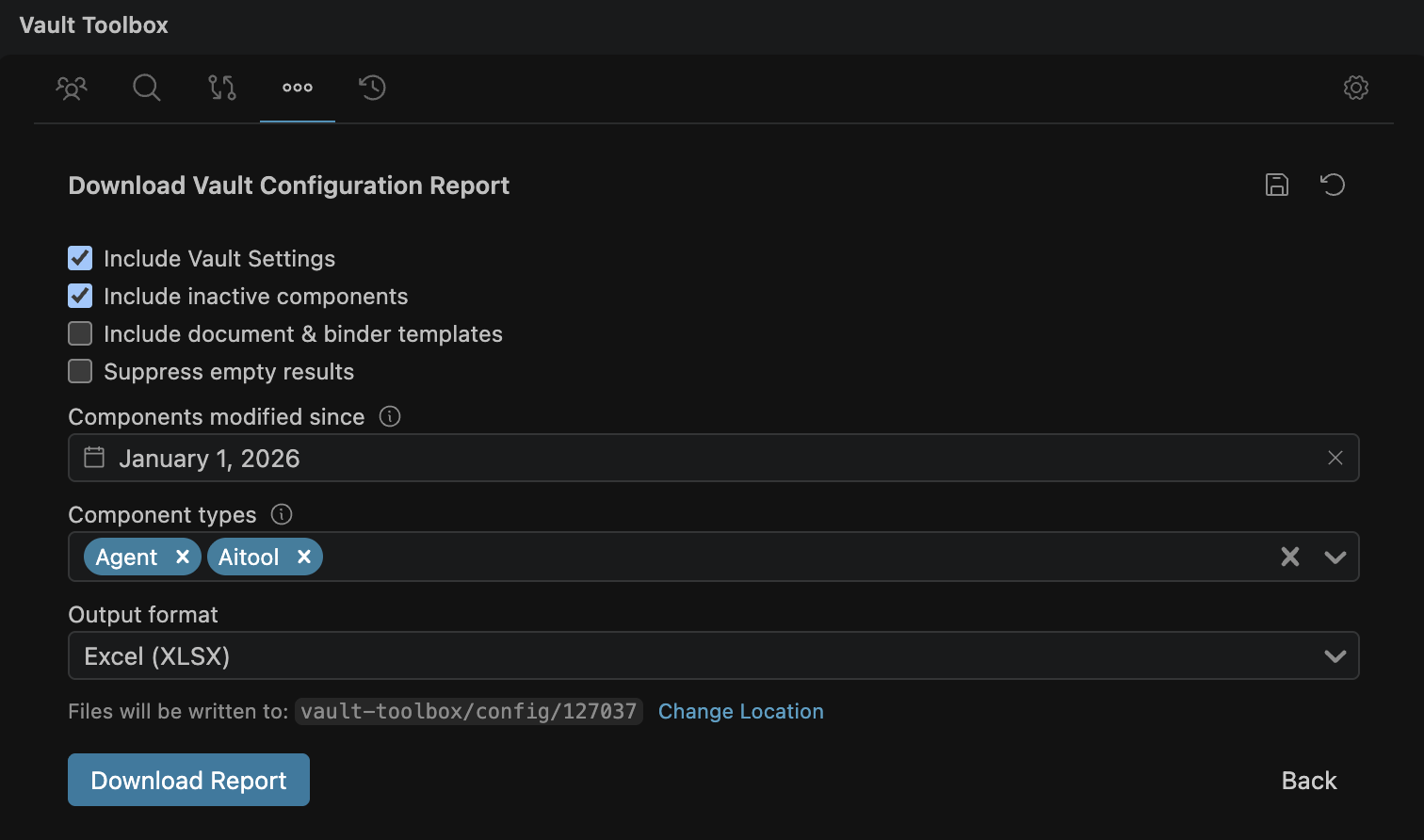
- Optional: Click Change Location to update the folder the report downloads to. By default, the report downloads to
vault-toolbox/config/<vaultId>. - Click Download Report.
Once the download completes, Vault Toolbox opens the destination folder in the Explorer panel. Vault also sends an email notification with a link to download the report .zip file.
Configuration Report Options
Section link for Configuration Report OptionsThe Download Vault Configuration Report form supports the following optional parameters:
- Include Vault Settings: If selected, the report includes Vault settings. Enabled by default.
- Include inactive components: When selected, the report includes inactive components and subcomponents.
- Include document & binder templates: When selected, the report includes document and binder templates. Enabled by default.
- Suppress empty results: When selected, the report excludes tabs with only header rows.
- Components modified since: When selected, the report only includes components modified since the selected date. This operation is not available for subcomponents. Leaving this field blank includes all dates.
- Component types: A list of component types to include (for example,
Doclifecycle,Doctype,Workflow). Leaving this field blank includes all component types and adds an Excel object data report to the.zipoutput. - Output format: The output format for the report: Excel Macro-Enabled (XLSM) or Excel (XLSX).
Extracting MDL from Vault
Section link for Extracting MDL from VaultVault Toolbox can extract component MDL from Vault, allowing you to review the configuration for certain components prior to writing custom MDL.
To extract MDL from Vault:
- Select the Vault Toolbox icon in the lefthand panel.
- Select the Actions (
) tab. - Expand Components (
) and select Extract MDL from Vault ( ). - In the confirmation dialog, click Extract.
Once the operation completes, you can access all component MDL in your Vault from the vault-toolbox/mdl/<vaultId> folder in your project repository, organized into one subfolder per component type.
Deploying MDL to Vault
Section link for Deploying MDL to VaultVault Toolbox utilizes the RECREATE MDL command to create or alter selected component types in Vault, using the file's existing contents exactly as written. To deploy MDL to Vault, right-click a .mdl file in the editor or the Explorer panel and select Vault Toolbox > Deploy to Vault.
Vault Toolbox reports whether the deploy succeeded or failed in a notification, including a View API Call button that opens the API History entry for the deploy.

Dropping MDL from Vault
Section link for Dropping MDL from VaultVault Toolbox utilizes the DROP MDL command to delete a component from Vault. To drop MDL from Vault, right-click a .mdl file in the editor or the Explorer panel and select Vault Toolbox > Drop from Vault.
You don't need to write the DROP statement yourself since Vault Toolbox derives the DROP statement automatically from the component type and name in the file's leading CREATE/RECREATE header. A confirmation dialog shows the exact statement and target Vault before anything is sent.