
Working with Custom SDK
Vault Toolbox provides tools to aid in writing your custom Vault Java SDK code. This guide outlines how to extract Vault Java SDK code from your Vault and use built-in file and live templates to write custom code.
Using File Templates
Section link for Using File TemplatesVault Toolbox includes file templates for all Vault Platform SDK entry points including RecordTrigger, RecordAction, Job, WebAPI. These file templates specify the default contents for new files you create within your project. Learn more about file templates in the IntelliJ IDEA documentation
To access the file templates, right-click on a parent folder within your project, hover over New, and select one of the available file templates.
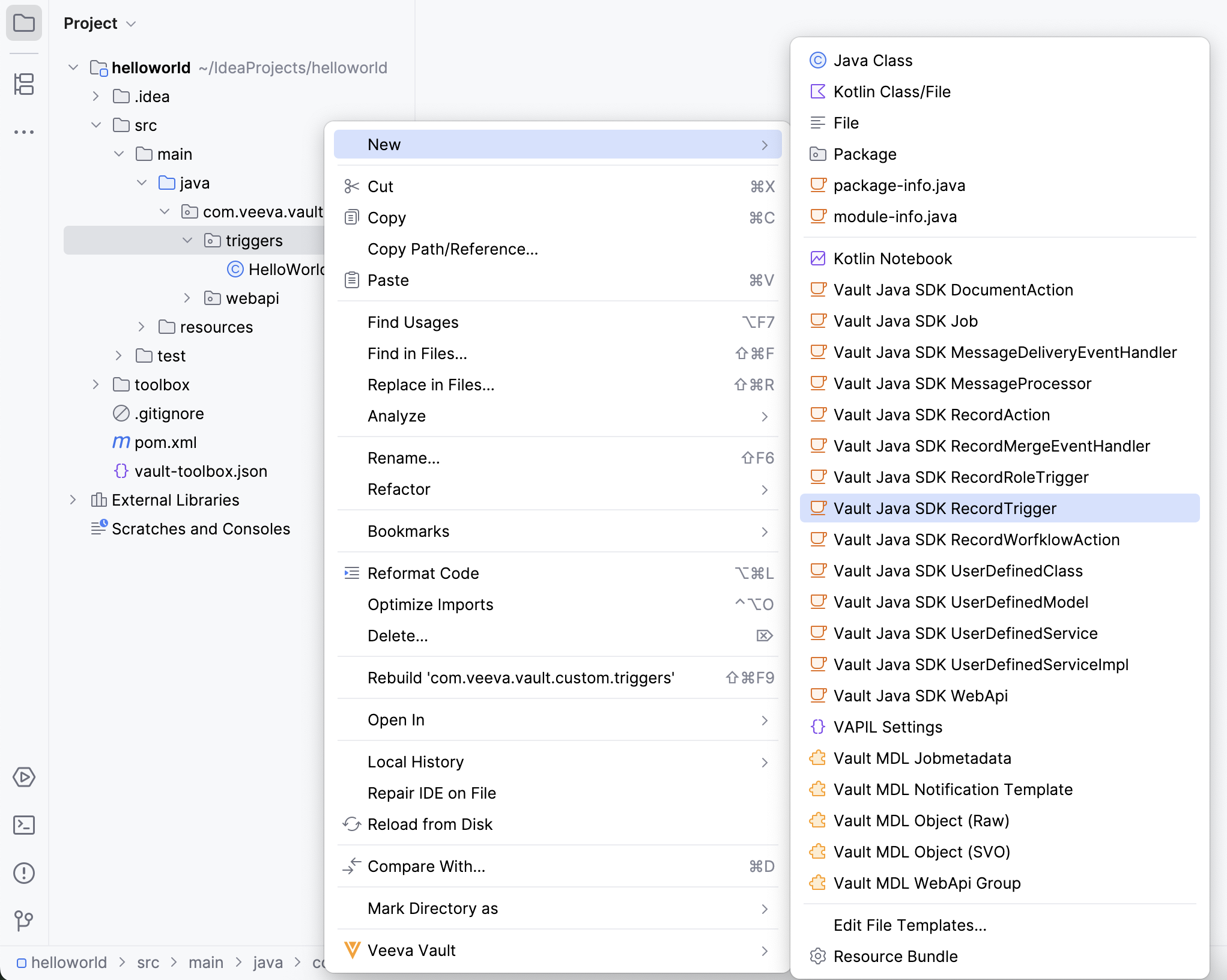
In the dialog, provide a Name and optional Description, then click OK. You may be prompted for additional fields depending on the selected template. For example, if you select the Vault Java SDK RecordTrigger template, the dialog prompts for an Object.
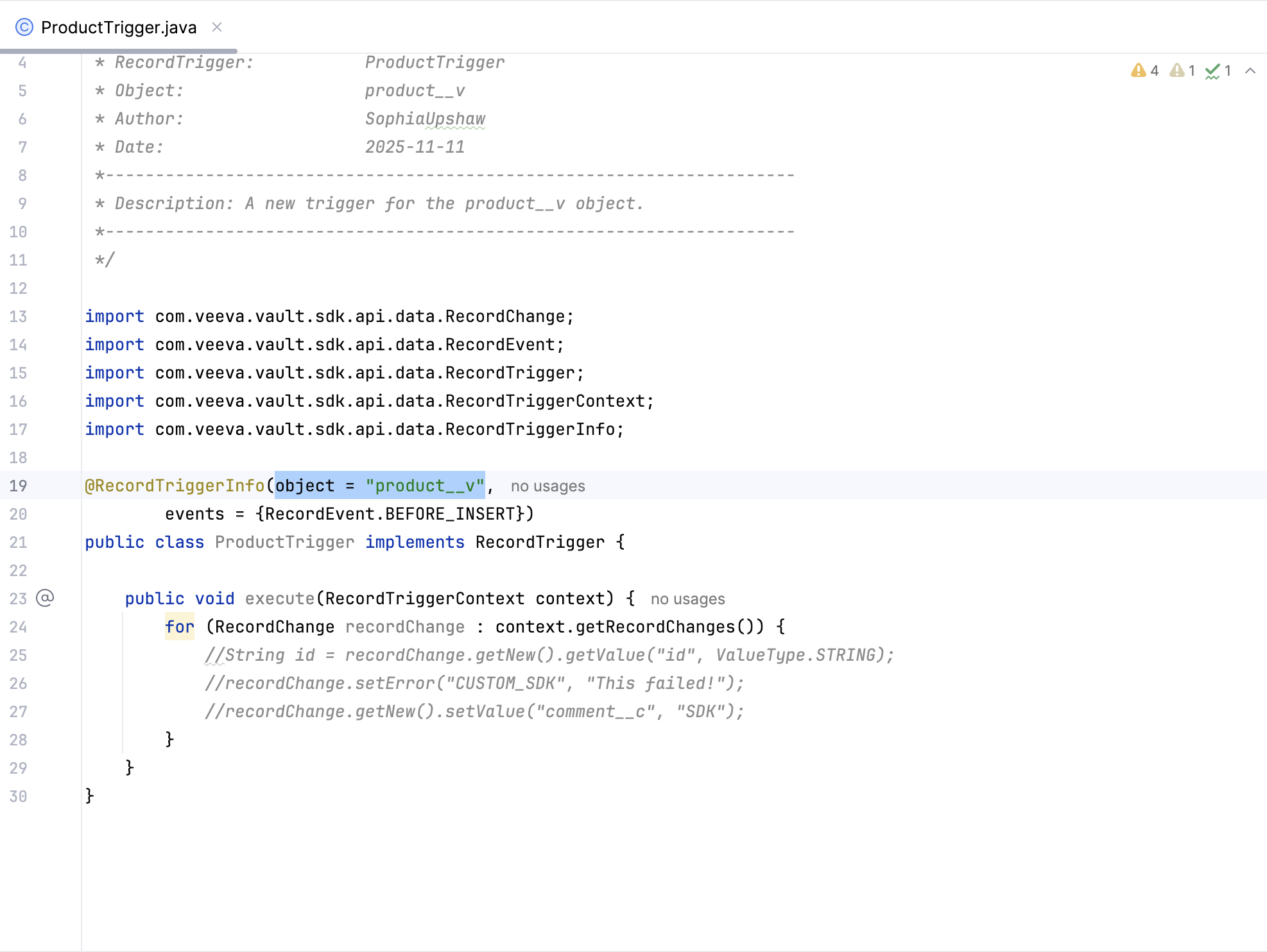
Within the parent folder, this action creates a .java file with the specified name, appended with "Trigger." The new file includes the initial formatting necessary for a given class, pre-populated with values from the fields prompted for previously. For example, if you provide product__v as the Object for a file named "ProductTrigger.java", the class will be defined with object = "product__v".
Using Live Templates
Section link for Using Live TemplatesVault Toolbox includes live templates for creating snippets of VAPIL and Vault Java SDK code. Learn more about live templates in the IntelliJ IDEA documentation
To access live templates, type either sdk or api within the code editor. There are multiple variables to choose from in the menu that appears. Double-click or use enter to select a variable and insert a code snippet. For example, selecting sdk_execute_as inserts the following code snippet:
ExecuteAsService executeAsService = ServiceLocator.locate(ExecuteAsService.class);
		executeAsService.executeAsJavaSdkUser(() -> {
});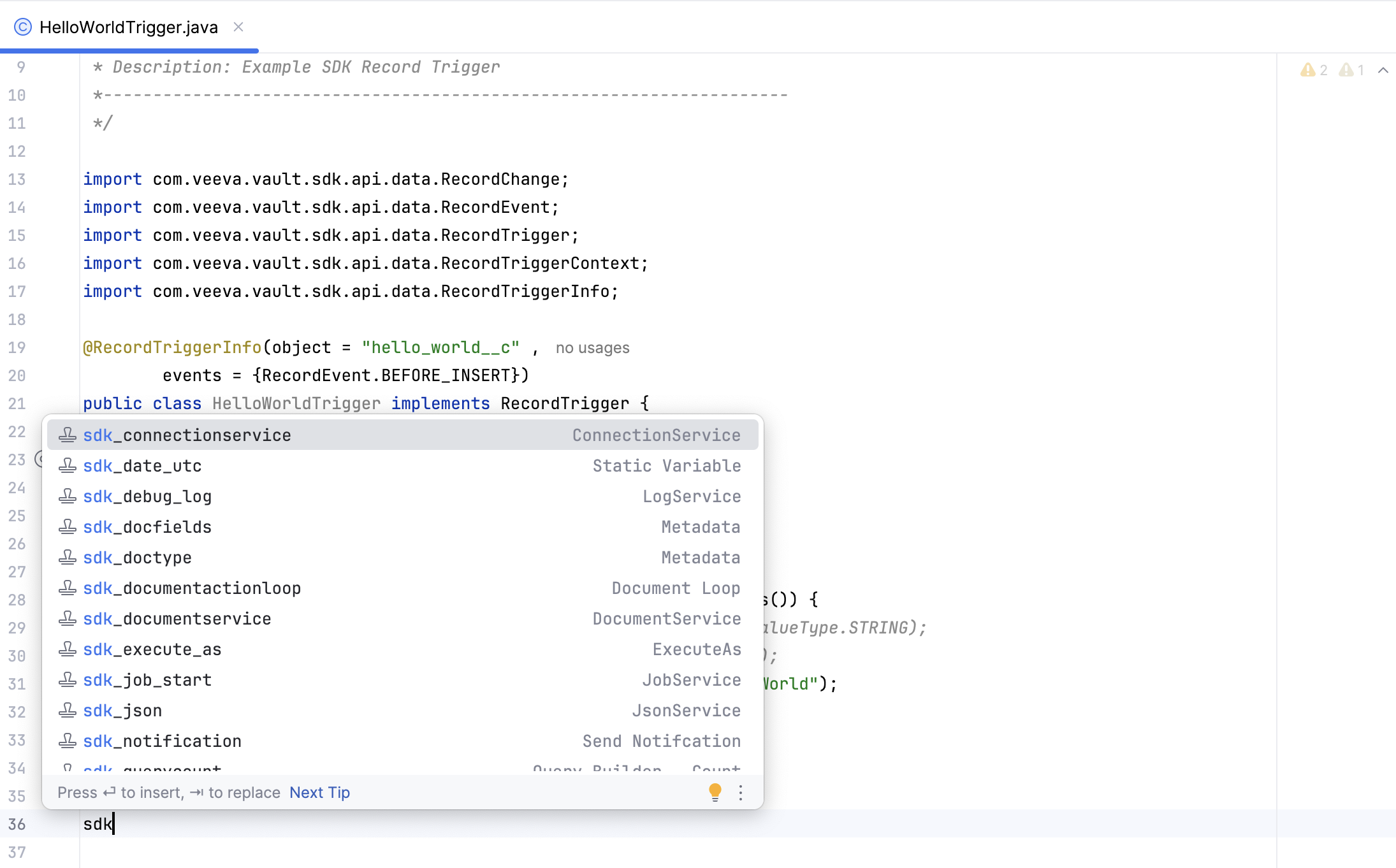
Live templates are context-aware, meaning sdk templates only appear in Vault Java SDK entry points and api templates only appear in non-SDK java code.
Extracting SDK from Vault
Section link for Extracting SDK from VaultThe Vault Toolbox plugin is also capable of extracting Vault Java SDK code from your Vault, allowing you to review it prior to writing custom code.
To extract or refresh Vault Java SDK code from Vault:
- Within IntelliJ IDEA, open the Vault Toolbox plugin from the righthand sidebar.
- Select the Actions (
) tab. - Expand Components (
) and double-click Extract SDK from Vault ( ). - In the dialog, click Extract. This operation does not delete local files that do not exist in Vault.
- Optional: If you've already extracted Vault Java SDK code from your Vault, click Download to refresh the SDK in your project directory. This operation deletes local files that do not exist in Vault.
Once the operation is complete, you can access all Vault Java SDK code in your Vault from the toolbox/sdk/{vaultid} folder within your project directory.
Deploying SDK Code to Vault
Section link for Deploying SDK Code to VaultTo deploy Vault Java SDK code to Vault, right-click on one or more .java files in your project directory and select Veeva Vault > Deploy to Vault (
Dropping SDK Code from Vault
Section link for Dropping SDK Code from VaultTo drop Vault Java SDK code from Vault, right-click on one or more .java files in your project directory and select Veeva Vault > Drop from Vault (