
Working with Vault Java SDK Code
Vault Toolbox provides tools to extract, deploy, and delete custom Vault Java SDK code directly from Visual Studio Code. This guide outlines how to use each of these tools.
Extracting Vault Java SDK Code from Vault
Section link for Extracting Vault Java SDK Code from VaultVault Toolbox can extract custom Vault Java SDK code from Vault, allowing you to review it prior to writing custom code.
To extract Vault Java SDK code from Vault:
- Select the Vault Toolbox icon in the lefthand panel.
- Select the Actions (
) tab. - Expand Components (
) and select Extract Java SDK Code from Vault ( ). - In the confirmation dialog, click Extract.
Once the operation completes, you can access all extracted classes from the vault-toolbox/sdk/<vaultId> folder within your repository, organized as a Java package tree. If one or more classes fail to download, Vault Toolbox still writes the classes that succeeded and reports which failed so you can investigate.
Deploying Vault Java SDK Code to Vault
Section link for Deploying Vault Java SDK Code to VaultTo deploy Vault Java SDK code to Vault, right-click a .java file in the editor or the Explorer panel and select Vault Toolbox > Deploy to Vault.
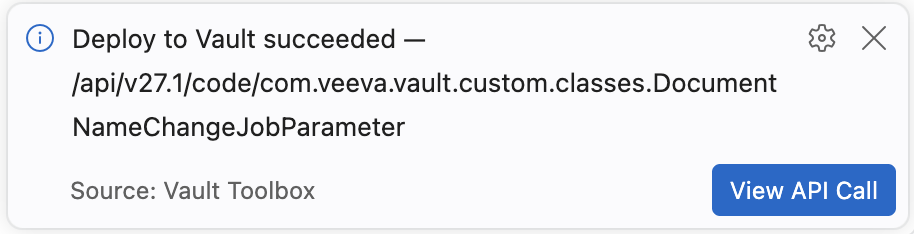
Vault Toolbox reports whether the deploy succeeded or failed in a notification, including a View API Call button that opens the API History entry for the deploy.
Deleting Vault Java SDK Code from Vault
Section link for Deleting Vault Java SDK Code from VaultTo delete Vault Java SDK code from Vault, right-click a .java file in the editor or the Explorer panel and select Vault Toolbox > Delete from Vault.
Vault Toolbox derives the class name automatically from the file's package declaration and file name, so you don't need to provide it yourself. A confirmation dialog shows the exact class name and target Vault before anything is sent.
Vault Toolbox reports whether the deletion succeeded or failed in a notification, including a View API Call button that opens the API History entry for the deletion.